Press Windows + R, type gpedit.msc, and press Enter. Navigate to User Configuration > Administrative Templates > Windows Components > Windows Copilot. Double-click “Turn off Windows Copilot,” select “Enabled,” then click Apply and OK. Restart your computer for the changes to take effect.
For Home users
Home users without access to the Group Policy Editor can disable Copilot via the Windows Registry. Press Windows + R, type regedit, and press Enter. Navigate to HKEY_CURRENT_USER\Software\Policies\Microsoft\Windows. Create a new key named WindowsCopilot if it does not exist. Inside this key, create a new DWORD (32-bit) value named TurnOffWindowsCopilot and set its value to 1. Restart your computer to apply the change.


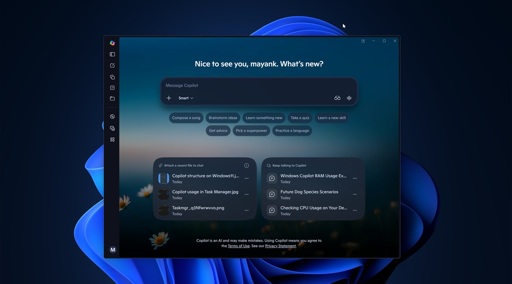
How to disable Copilot
For Pro, Enterprise, or Education users
Press Windows + R, type gpedit.msc, and press Enter. Navigate to User Configuration > Administrative Templates > Windows Components > Windows Copilot. Double-click “Turn off Windows Copilot,” select “Enabled,” then click Apply and OK. Restart your computer for the changes to take effect.
For Home users
Home users without access to the Group Policy Editor can disable Copilot via the Windows Registry. Press Windows + R, type regedit, and press Enter. Navigate to HKEY_CURRENT_USER\Software\Policies\Microsoft\Windows. Create a new key named WindowsCopilot if it does not exist. Inside this key, create a new DWORD (32-bit) value named TurnOffWindowsCopilot and set its value to 1. Restart your computer to apply the change.
I disabled it with a Linux install.
Best possible comment
Also Windows kinda seems like it’s a horribly confusing mess to me but maybe I just don’t understand it
It works! It really saves 1GB ram!
You can also enable Group Policy Editor for Home Edition if you’re willing to run a batch file from the internet.